WWidgetNote
WidgetNote/Notepad Widget
iPhone notepad widget

A notepad widget that lives on your iPhone Home Screen

WidgetNote turns your iPhone Home Screen into a notepad — keep a running list, a scratch note, or a reminder visible without opening an app, the way a paper notepad always stays open on your desk.

A notepad and sticky note widget in one, with iCloud sync and shared notes.

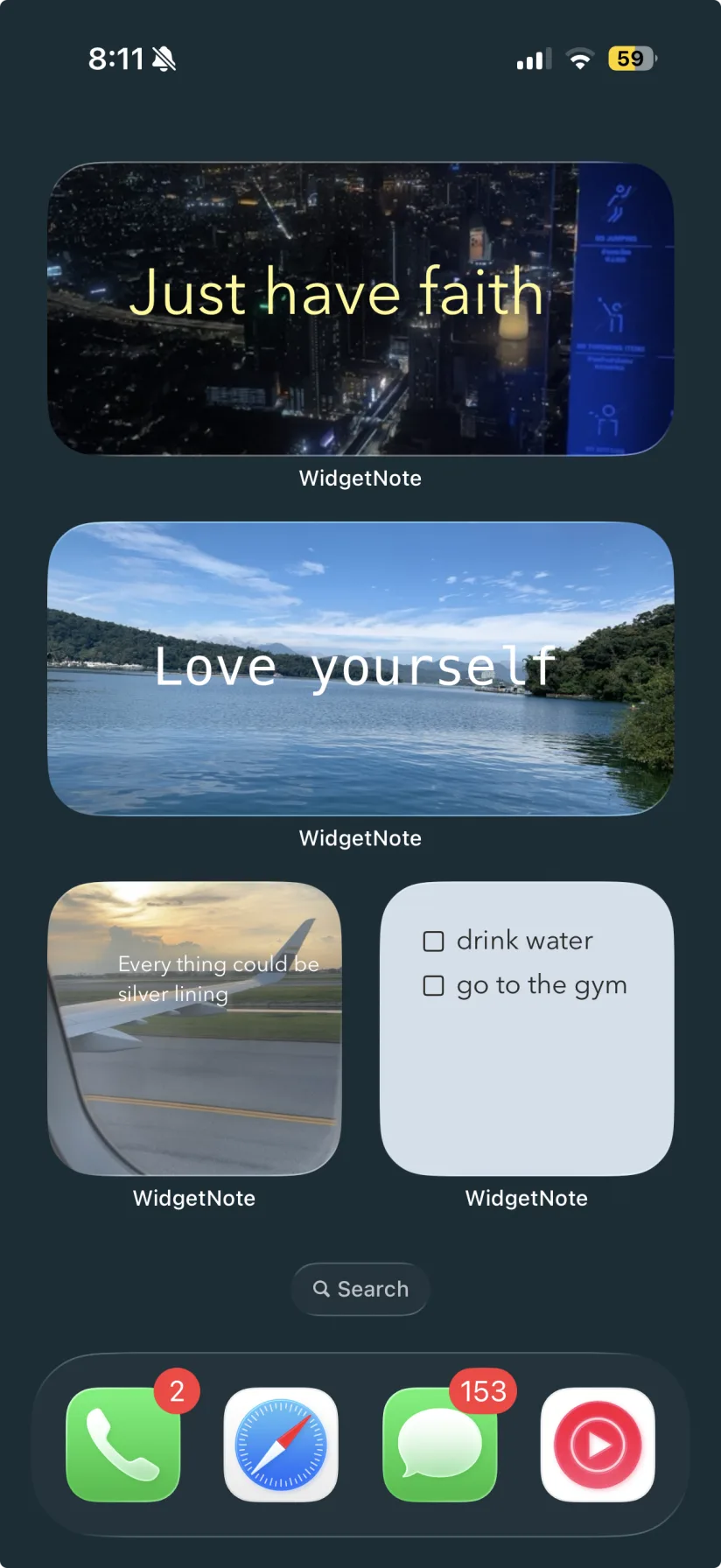
WidgetNote notepad and checklist widgets on an iPhone Home Screen
Keep a notepad and checklist open on the iPhone Home Screen.

Your iPhone Home Screen as an always-open notepad

A notepad is most useful when it is already open in front of you. The built-in Notes app and most notepad apps hide everything one tap away. WidgetNote puts a real notepad widget on the iPhone Home Screen, so your running list, jotted thoughts, and reminders stay in view all day.

A running notepad you never have to open

Use a WidgetNote note as a lightweight notepad for the things you keep adding to throughout the day.

  • A rolling to-do or grocery notepad on the Home Screen.
  • Quick scratch notes, numbers, or addresses you need at a glance.
  • A larger widget size when the notepad needs more lines of text.

More than a plain notepad widget

WidgetNote keeps the simplicity of a notepad but adds the styling and sync that a paper pad cannot.

  • Adjust paper color, font, text color, size, position, and tilt.
  • Add a photo background when a note is more than just text.
  • Sync your notepad across iPhone and iPad with iCloud / CloudKit.

Edit the notepad straight from the widget

Tap the notepad widget to open WidgetNote, update the text, and the Home Screen updates with it — no separate app to dig through.

Steps
1

Create a notepad note

Open WidgetNote and start a note for your running list or scratch pad.

2

Choose a readable style

Pick paper, font, text color, and a widget size that fits your text.

3

Add the widget

Long-press the Home Screen, tap +, add WidgetNote, and choose the note.

4

Keep adding to it

Tap the notepad widget anytime to add lines or edit — changes sync across devices.

FAQ

Questions people ask

Is there a notepad widget for iPhone?

Yes. WidgetNote works as a notepad widget for iPhone — create a note in the app and show it as a Home Screen or Lock Screen widget so your notepad stays visible.

Can I keep a running list in the notepad widget?

Yes. Use a WidgetNote note as a running notepad or checklist, and tap the widget whenever you need to add or change a line.

What is the difference between a notepad widget and a sticky note widget?

They are two sides of WidgetNote: use a larger widget as a notepad for longer running text, or a small one as a quick sticky note. Both support the same styling and sync.

Does the notepad widget sync across devices?

Yes. Your notepad notes sync across iPhone and iPad with iCloud / CloudKit, and shared notepad notes stay in sync for everyone in the group.

Put a notepad on your iPhone Home Screen

Download WidgetNote and keep an always-open notepad widget where you will actually see it.