WWidgetNote
WidgetNote/Post-it Widget
iPhone post-it widget

A post-it widget for your iPhone Home Screen

WidgetNote brings the post-it habit to iOS: small squares of colored paper with one thing written on them, stuck where you cannot avoid seeing them — except these sync, and you can share them.

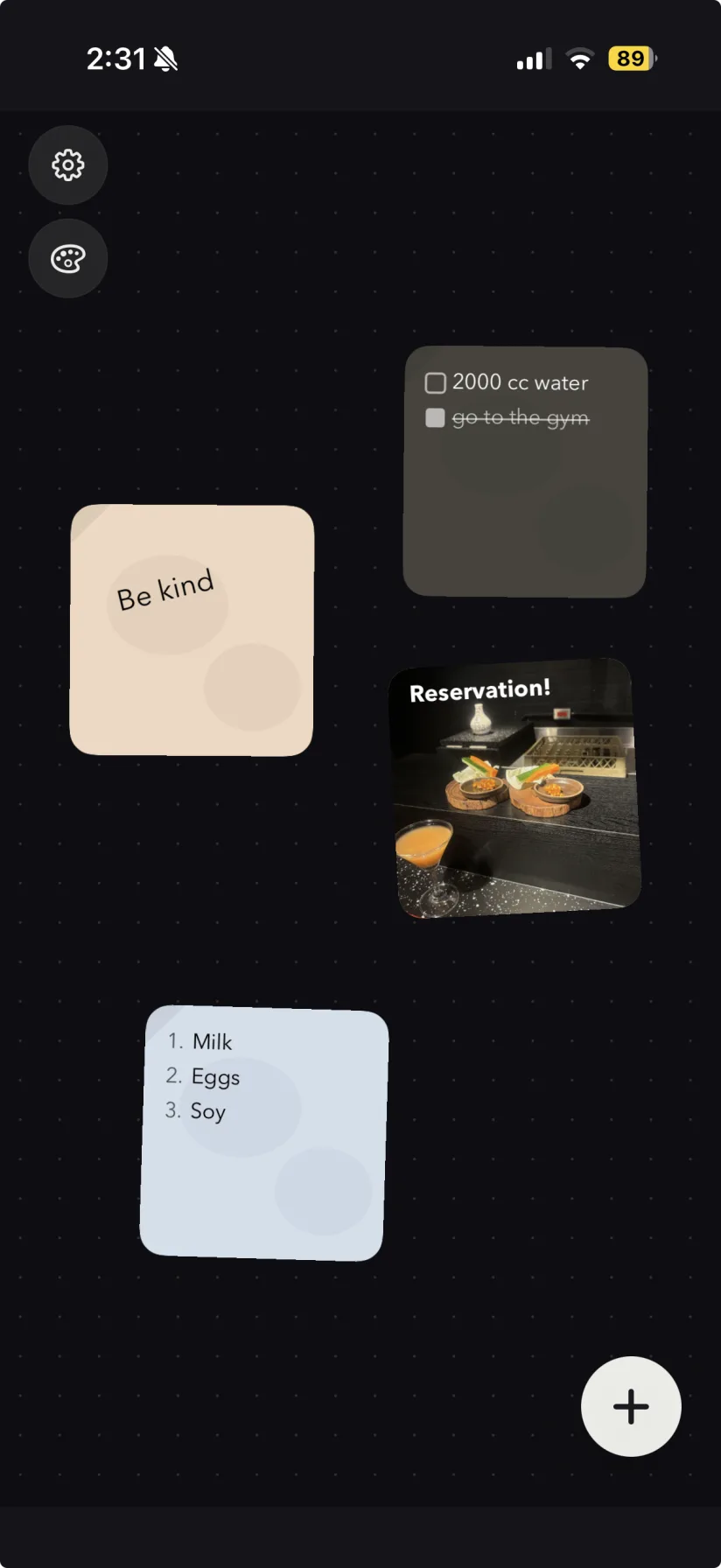
Colored paper, handwriting-style fonts, tilt, photo backgrounds, and shared notes.

Post-it style note widgets in several paper colors on an iPhone Home Screen
Post-it style notes in different paper colors on the Home Screen.

Why the post-it survived every productivity app

Post-it notes have outlived a few decades of software that was supposed to replace them, and the reason is not nostalgia. A post-it holds exactly one thing, takes two seconds to write, and sits in your field of view whether you asked for it or not. No app that requires opening can compete with that. WidgetNote is an attempt to keep those three properties and add the two things paper cannot do: syncing across your devices, and appearing on someone else's phone.

One note, one square, one job

A post-it widget works because it refuses to hold much. Keep it to a single line or a short list and it stays readable at a glance from across the room.

  • A small widget for one line: a code, a time, a name, a number.
  • A medium widget for the three-item version of a list.
  • Several small post-it widgets side by side instead of one crowded large one.

Colored paper that means something

The point of a post-it wall was never decoration — it was color-coding. Give each paper color a fixed meaning and you stop reading the notes to know which is which.

  • Pick paper colors that separate from your wallpaper, not ones that blend in.
  • Choose a font and text size you can read while walking, not while focused.
  • Add a slight tilt so the note reads as paper instead of another system card.

Post-it notes you can hand to someone

The one thing a paper note on a fridge could always do is be read by whoever walks past. A shared note widget does the same across two phones — you write it, it appears on their Home Screen.

Your paper post-it habits, translated

Most people arriving here already have a post-it system — on a monitor bezel, a fridge, the inside of a front door. The useful question is not what the app can do but which of those habits actually transfer to a Home Screen, and which do not.

Paper habitOn the iPhone Home ScreenWorth doing?
One note stuck to your monitorA small widget with a single line, placed in your top Home Screen rowYes — this is the habit that transfers best.
A color-coded cluster of notesTwo or three small widgets, each a fixed paper color with a fixed meaningYes, up to about three. Past that they stop being distinguishable.
A note on the fridge for the householdOne shared note, appearing on everyone's Home ScreenYes — and it is the case paper genuinely could not do well.
A wall of twenty notesNote rotation or a widget stack cycling through themPartly. A screen cannot show twenty at once, and rotation means you see one at a time.
Peeling one off and throwing it awayEditing the note, or swapping which note the widget points atThe satisfying part does not survive the translation. Nothing to be done about that.

The honest summary: post-it widgets are excellent for the two or three notes you re-read constantly, and a poor substitute for a physical wall of them.

Post-it widget vs. sticky note widget vs. notepad — do they differ?

In WidgetNote these are the same feature wearing different clothes, and it is worth saying that plainly rather than pretending there are three products. What changes is the shape of the note and how you use it. A post-it is the smallest form: one square, one line, a bright paper color, usually tilted a few degrees. That is a styling choice you make in the app, not a separate mode.

The sticky note widget page covers the same idea with more attention to the styling controls — paper, font, color, and readability against different wallpapers. The notepad widget page covers the opposite end: a larger widget holding a running list that keeps growing through the day. Same note engine, different job.

If you are choosing between them, the deciding question is whether the note is finished when you write it. A post-it is finished — a phone number, a door code, one instruction. A notepad is not — you will add to it four more times before the day ends. Picking the wrong one is the usual reason a Home Screen note stops getting read.
Making a post-it widget you will still notice in a month

The failure mode of any Home Screen note is habituation. Your brain is extremely good at learning that a region of the screen contains nothing new and skipping it, and once that has happened the note is functionally invisible even though you can see it. Paper post-its have the same problem, which is why the ones that work are the ones you move, rewrite, or replace.

Two things help. First, keep the count low — one or two notes stay salient far longer than six. Second, actually change them. A note that has said the same thing for three weeks has stopped being a reminder and become wallpaper; either it has done its job and can go, or it needs rewriting into something more specific.

The other practical tip is placement. Put the note in the top row of the first Home Screen, where your eye lands when the phone unlocks. A post-it widget on the third page is a note you have agreed in advance not to read. If it matters enough to pin, it matters enough to displace an app.

Steps
1

Write the post-it

One line, or one short list. Resist filling the square.

2

Pick the paper

Choose a paper color that contrasts with your wallpaper, plus font, text color, and a small tilt.

3

Add the widget

Long-press the Home Screen, tap +, add WidgetNote, and choose a small or medium size.

4

Put it in the top row

Place it where your eye lands on unlock, not on a later page.

5

Change it when it goes stale

Tap the widget to rewrite it, or point it at a different note.

FAQ

Questions people ask

Is there a post-it widget for iPhone?

Yes. WidgetNote works as a post-it note widget for iPhone: write a short note, style it as colored paper with an optional tilt, and add it to the Home Screen or Lock Screen through the iOS widget picker.

Can I have several post-it note widgets at once?

Yes. You can place multiple WidgetNote widgets side by side, each showing a different note and paper color. You can also use note rotation or an iOS widget stack so one slot cycles through several notes.

Can I change the post-it color?

Yes. Paper color, font, text color, text size, text position, and tilt are all adjustable per note, and you can set a photo as the background instead of a solid paper color.

Can I share a post-it note with someone else?

Yes. A note can be shared with a partner, friend, or family group through iCloud / CloudKit, so the same post-it appears on everyone's Home Screen and updates when anyone edits it.

Is WidgetNote affiliated with Post-it or 3M?

No. Post-it is a trademark of 3M, and WidgetNote is an independent app with no connection to 3M. The words "post-it" and "sticky note" are used here only to describe the kind of note widget WidgetNote makes.

Stick your first note to the Home Screen

Download WidgetNote and put one short, brightly colored note where you will actually keep seeing it.