WWidgetNote
WidgetNote/Note Widget Templates
Note widget templates

Aesthetic note widget templates for your iPhone

Pick a template and your note instantly becomes grid paper, a lined notebook page, a washi-taped card, a soft glow, a rainy window, or a winter-holiday note — right on your Home Screen.

Switch templates anytime. Your text always stays.

Templates work in every widget size.

Templates make a note widget worth looking at

A Home Screen is personal. Most note widgets give you a colored rectangle and a font picker. WidgetNote adds a template gallery, so a reminder can look like a page from a notebook, a card with washi tape, or a cozy scene that matches your wallpaper — without designing anything yourself.

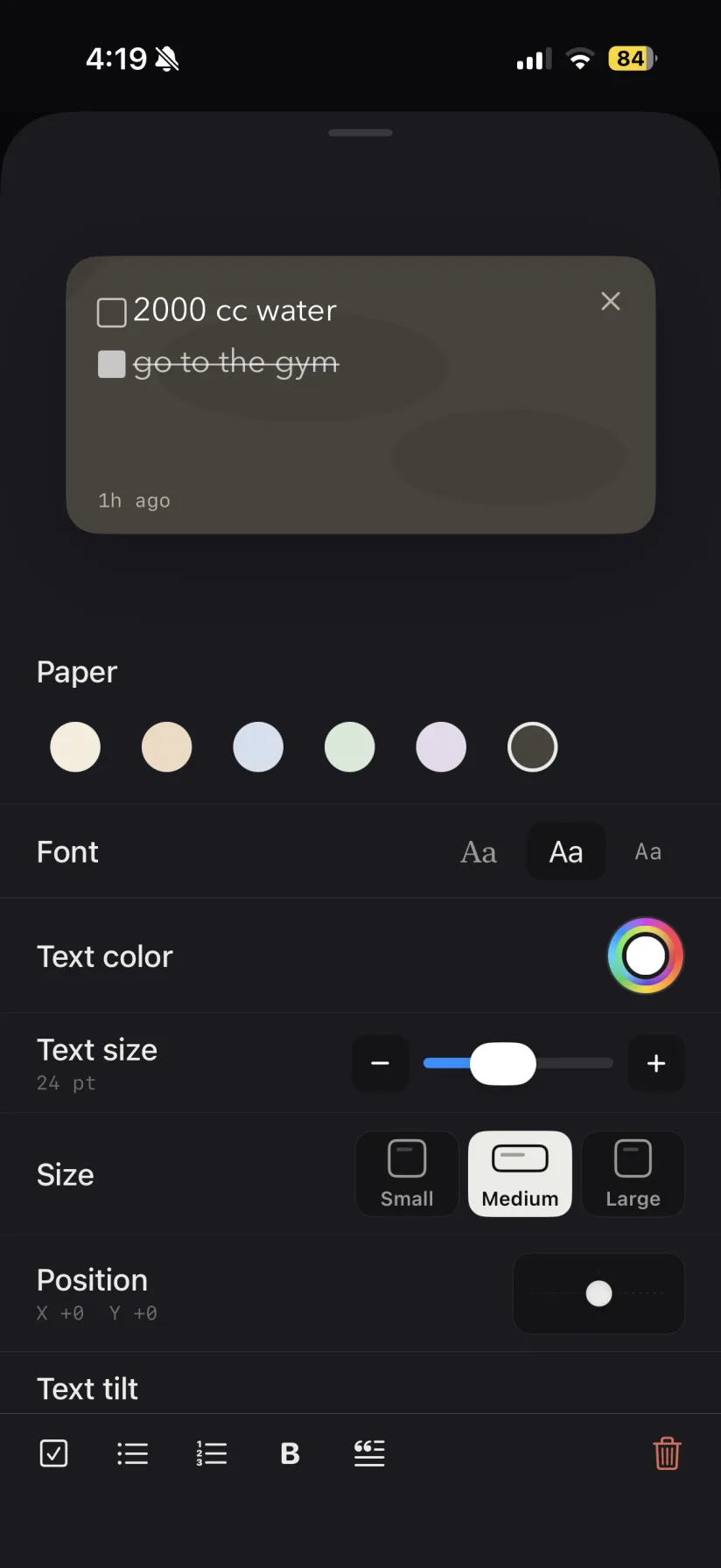
WidgetNote note style customization screen
An actual screenshot from WidgetNote

Six template families

Every template is built for widgets, so text stays readable on small, medium and large sizes.

  • Paper: plain, grid, lined notebook and dot grid.
  • Tape & stickers: washi tape strips and a little “you got this” sticker.
  • Glow: peach glow, lilac glow and a dark night aurora.
  • Scenes: rainy window and desk lamp.
  • Seasonal: autumn leaves and winter holidays.
  • Photo: a full-bleed photo with a scrim so text stays legible.

Your words stay put

Switching templates only changes the look. The text, checklist or tool inside the note stays exactly as it was, so you can try a seasonal template and switch back anytime.

  • Patterned papers keep your chosen paper color.
  • Dark templates flip the ink automatically.
  • Fonts, text size, position and tilt still apply.

Templates for shared notes too

Templates sync through iCloud, so a shared couple or family note looks the same on everyone’s Home Screen — and you can pair any template with a tool like a checklist or countdown.

Steps
1

Open a note

Create a new note or open one you already have in WidgetNote.

2

Tap Template

Browse Paper, Tape & stickers, Glow, Scenes, Seasonal and Photo.

3

Pick a look

Preview it with your own text, then tap to apply.

4

Add the widget

Long-press the Home Screen, tap Edit → Add Widget (or + on older iOS versions), and add WidgetNote. Then long-press the widget, choose Edit Widget and select the note.

FAQ

Questions people ask

Does WidgetNote have aesthetic note widget templates?

Yes. WidgetNote includes a template gallery with paper textures, washi tape and stickers, glow gradients, cozy scenes, seasonal designs and a full-photo layout for iPhone note widgets.

Will I lose my text if I change the template?

No. A template only changes the background and decoration. Your text, checklist items and tools stay in the note.

Can I use a lined or grid paper widget on iPhone?

Yes. Choose the Lined, Grid or Dot grid template. These patterns sit on top of your paper color, so you can still pick the tint you like.

Do templates work with shared notes?

Yes. The template is part of the note, so shared notes show the same template on every member’s widget.

Give your Home Screen a note worth reading

Download WidgetNote and turn your next reminder into a template you actually like looking at.