WWidgetNote
WidgetNote/How to Add a Note Widget on iPhone
iPhone note widget tutorial

How to add a note widget on iPhone

Follow these steps to create a WidgetNote note, customize it, and place it on your iPhone Home Screen.

Works for reminders, checklists, shared notes, and photo-backed notes.

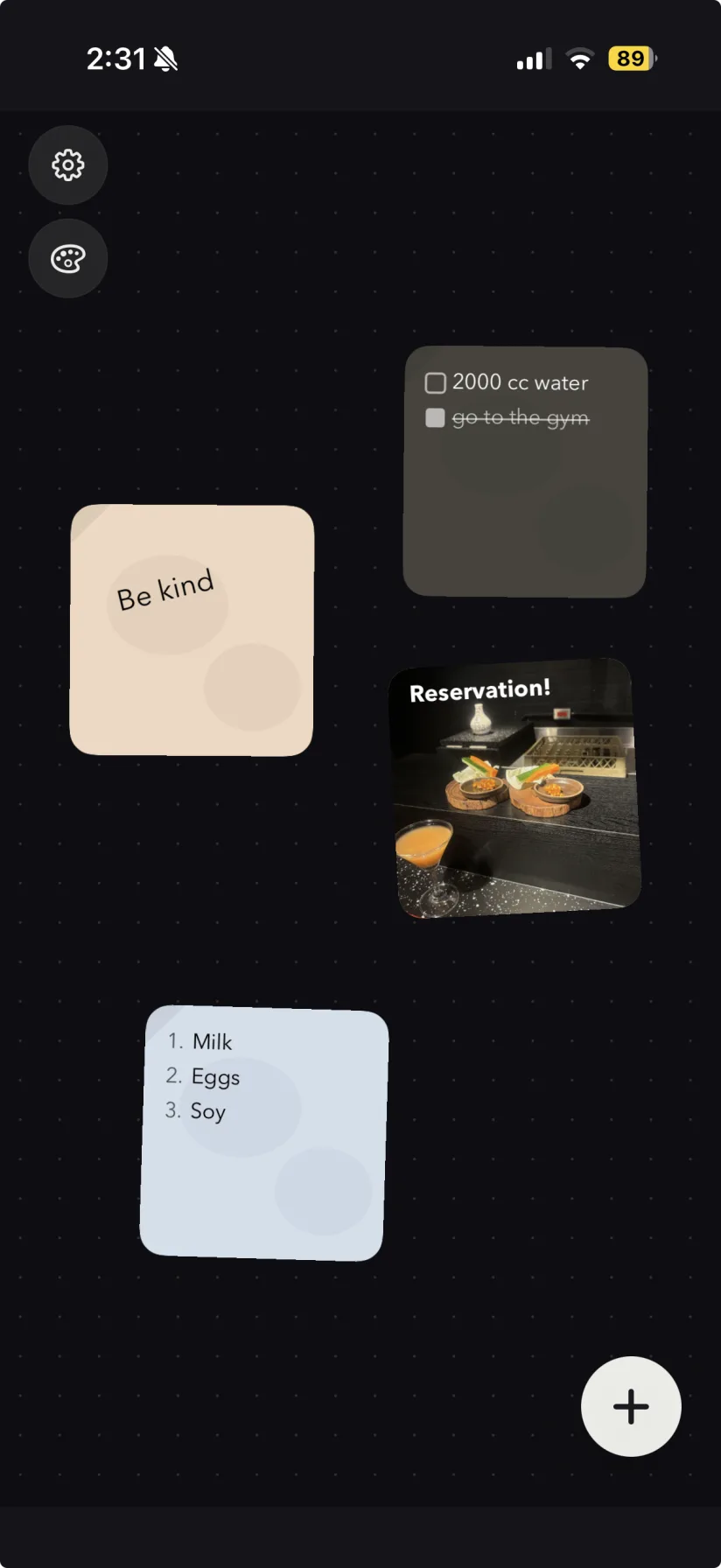
WidgetNote note widgets placed on an iPhone Home Screen
After setup, your note appears directly on the iPhone Home Screen.

The simplest way to put a note where you will see it

iOS widgets make notes more visible, but the best result comes from an app designed for Home Screen notes. WidgetNote gives you a note, styling controls, sync, and shared options in one flow.

Before you start

Install WidgetNote from the App Store and decide what kind of note should live on your Home Screen.

  • A reminder you check many times a day.
  • A grocery list or short checklist.
  • A shared note for a partner or family.
  • A photo note with a visual reminder.

Make the widget easy to read

Short notes work best on the Home Screen. Use a larger widget for longer text, or make a note rotation when several notes need to share one space.

Edit from the widget later

When the note changes, tap the widget to open WidgetNote and update the content or style.

Steps
1

Open WidgetNote and create a note

Write the note, checklist, reminder, or shared message you want to pin.

2

Customize the note

Choose paper color, font, text color, size, position, tilt, and optional photo background.

3

Long-press the Home Screen

Hold an empty area until the apps jiggle, then tap the + button.

4

Choose WidgetNote

Search for WidgetNote, pick a widget size, add it, and select the note to display.

5

Move it into place

Drag the widget to the Home Screen spot where you will notice it most.

FAQ

Questions people ask

Can I add a note widget to the iPhone Home Screen?

Yes. With WidgetNote, you create a note in the app and then add it through the iOS widget picker on the Home Screen.

Why is my note widget not showing the right note?

Long-press the widget, edit the widget settings, and choose the WidgetNote note you want to display.

Can I add a note widget to the Lock Screen too?

Yes. WidgetNote supports Lock Screen widgets as well as Home Screen widgets.

Can I add a shared note as a widget?

Yes. Create or join a shared note in WidgetNote, then choose that note when configuring the widget.

Add your first note widget in under a minute

Download WidgetNote and follow the steps to place a readable note on your iPhone Home Screen.