WWidgetNote
WidgetNote/Note Widgets
Note widgets for iPhone

Every kind of note widget, and which one to actually use

Sticky notes, post-it, notepad, photo notes, shared notes — they all end up on the Home Screen, but they are good at different things. Here is the difference, in one place, before you pick.

WidgetNote is one app that covers every note widget type on this page.

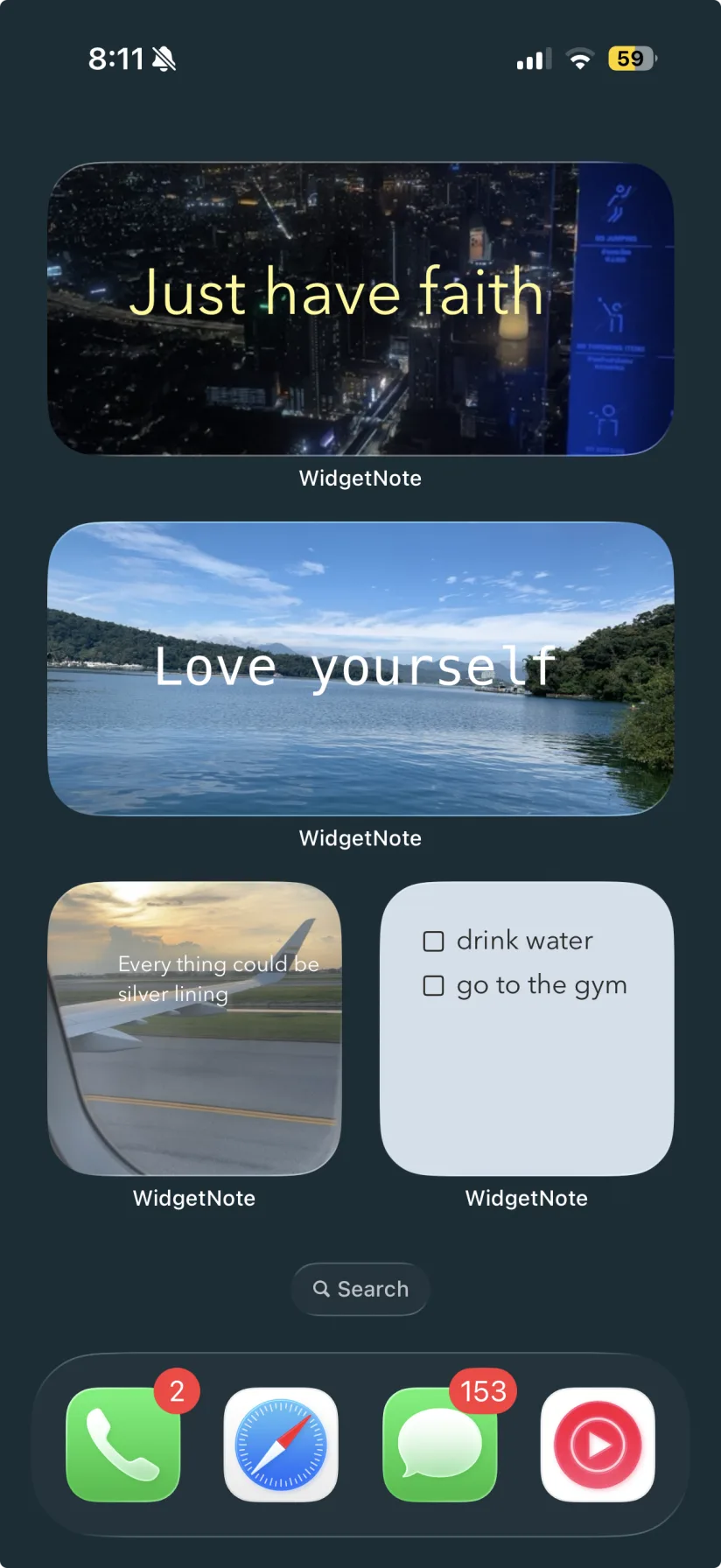
Several WidgetNote note widgets of different sizes and styles on one iPhone Home Screen
Different note widget types can share a single Home Screen.

Start from the note, not from the widget

Most people search for note widgets and then try to make one widget do everything. It works better the other way round: decide what the note is for — a list you tick, a line you must not forget, something two people edit — and the type and size follow from that.

The five note widget types, in plain terms

These are the shapes a note widget actually takes on iOS. WidgetNote provides all of them, so choosing between them is a styling decision inside one app rather than five separate downloads.

  • Sticky note widget — short, high-contrast, one thought. The classic yellow square.
  • Post-it widget — the same idea with the paper look and a slight tilt, for a Home Screen that should feel like a pinboard.
  • Notepad widget — lined paper and more room, for lists and notes that run over a few lines.
  • Photo note widget — a picture behind the text, for a reminder that also has to mean something.
  • Shared note widget — one note, two phones, both Home Screens updating.

Pick the type by what the note has to do

If it is one line you must not forget, use a sticky note widget — small size, big text, nothing else competing. If your Home Screen should read like a pinboard, the post-it widget does the same job with paper texture and a tilt. If the note is a list, the notepad widget gives you the lines and the room to actually use them. And when two people need the same note, a shared note widget syncs it to both Home Screens instead of leaving one of you to relay it.

Widget size is half the decision

The type sets the look; the size sets how much you can read at a glance, which is the whole point of a widget. A note that needs scrolling has failed. See which size fits which note before you commit a slot on your best Home Screen page.

Where the widget goes matters as much as what it says

A perfect note on page three of your Home Screen is a note you will never read. Think about placement deliberately — what belongs on the Home Screen and what is better on the Lock Screen — and then add the widget once you know where it is going.

Note widget types side by side

The honest comparison, including what each type is bad at. Every row is available in WidgetNote — the differences are style and size, not separate apps.

Widget typeBest forBest sizeWeak at
Sticky noteOne line you must not forgetSmallAnything longer than a few words
Post-itA pinboard-looking Home ScreenSmall / MediumDense text — the tilt costs readable width
NotepadChecklists and multi-line notesMedium / LargeGlanceability — you read it, not scan it
Photo noteReminders that need context or moodMedium / LargeContrast, if the photo is busy behind the text
Shared noteCouples, families, flatmates, teamsMediumPrivate notes — the other person sees edits

Lock Screen widgets are a separate, much smaller surface and render in a flat tinted style, so paper colours and photo backgrounds barely show. Keep Lock Screen notes to a handful of characters.

Do you need several note widgets, or one?

Several — but fewer than people first put up. The failure mode with note widgets is treating the Home Screen like a second notes app and filling it with everything, at which point none of them register any more. Two or three widgets that each earn their slot beat six that you have stopped seeing.

A layout that tends to survive contact with real use: one small note for today's single most important thing, one medium list you tick through, and — if it applies to you — one shared note so the other person's changes land on your screen without a message. Anything past that belongs inside the app, not on the Home Screen.

If your Home Screen is genuinely full, an iOS widget stack is better than deleting an app, with one real cost: a note in a stack is only visible when its turn comes up. That is fine for a rotating weekly note and useless for a reference note you check constantly.

Note widgets vs. the built-in Notes app

Apple's Notes app does have a widget, and for a lot of people it is enough. It shows recent notes in a plain system style, and tapping it opens Notes. What it does not do is let you decide how the note looks — paper colour, font, text size, placement, tilt, a photo behind it — which sounds cosmetic and is not. A widget is read at a glance from an arm away, and legibility at that distance is mostly styling.

The other difference is intent. The Notes widget shows you what you edited recently. A dedicated note widget shows the note you chose, and keeps showing it until you change your mind. For a reminder that only works if it is always in the same place, that distinction is the whole feature.

Sharing works differently too. Notes shares a document you open; a shared note widget shares a surface both people already look at fifty times a day, which is why it survives as a habit when a shared document does not.

Steps
1

Decide what the note is for

A single reminder, a list, a photo, or something two people edit — this picks the type.

2

Pick the matching size

Small for one line, medium for a list, large when the note needs room to stay readable.

3

Style it for reading at arm's length

Paper colour, font, text size and placement decide whether you actually notice it.

4

Add it to the Home Screen

Long-press the Home Screen, tap +, choose WidgetNote, and select which note to display.

5

Delete the ones you stopped reading

A widget you look past is worse than an empty slot — it trains you to ignore that spot.

FAQ

Questions people ask

What is the best note widget for iPhone?

It depends on the note. A sticky note widget is best for a single line you must not forget, a notepad widget for checklists, and a shared note widget when two people need the same note. WidgetNote covers all of these types in one app, so you can switch between them without changing app.

Can I have multiple note widgets on the Home Screen?

Yes. You can add as many WidgetNote widgets as you have space for, each pointing at a different note, and you can combine them into an iOS widget stack if your Home Screen is full.

Are there free note widgets for iPhone?

Yes. WidgetNote is free to download from the App Store and you can create notes and add Home Screen and Lock Screen widgets without paying.

What is the difference between a note widget and the Notes app widget?

Apple's Notes widget shows recently edited notes in a fixed system style. A dedicated note widget lets you pin one chosen note and control how it looks — paper colour, font, size, placement, and photo background — which is what makes it readable at a glance.

Do note widgets work on the iPhone Lock Screen?

Yes. WidgetNote supports Lock Screen widgets as well as Home Screen widgets. Lock Screen widgets are much smaller and render in a flat tinted style, so keep those notes very short.

Every note widget type, in one app

Download WidgetNote and try the types against a real note instead of guessing which one you need.