WWidgetNote
WidgetNote/Countdown Widget
Countdown widget for iPhone

A countdown widget that lives on your note

Add the Countdown tool to any WidgetNote note, pick a date, and your Home Screen shows how many days are left — for a trip, a birthday, an exam, or the holidays.

Updates by itself every day. Pair it with any template.

Days-until countdowns on a note widget.

Why put a countdown on a note?

Single-purpose countdown apps show a number. A WidgetNote countdown sits inside a note, so you can add the details that matter — the flight time, what to pack, the gift list — and style it with a seasonal template. It is one widget instead of three.

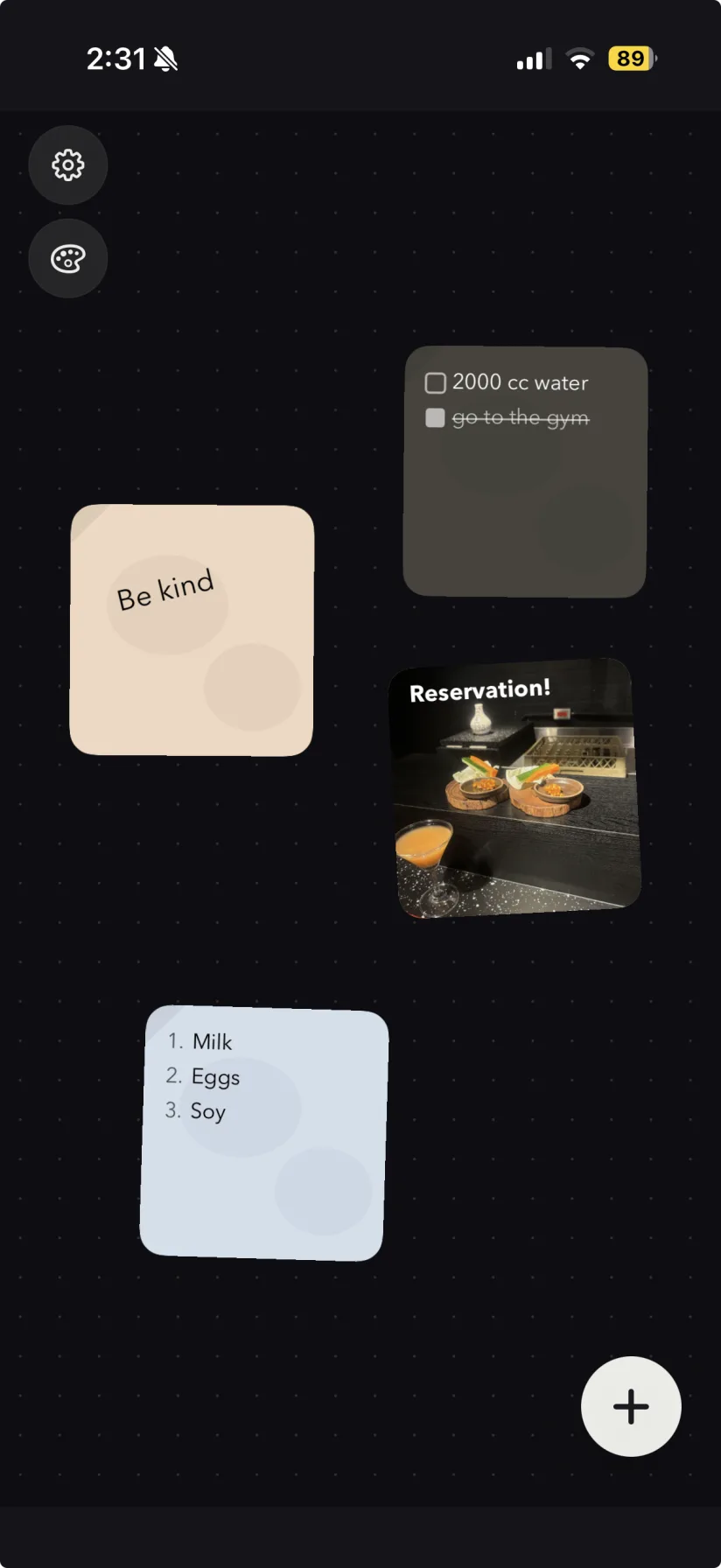
WidgetNote note widgets on an iPhone Home Screen
An actual screenshot from WidgetNote

Count down to anything

Pick any future date and the widget shows the days to go. After the date passes, it switches to “days ago,” which is handy for anniversaries and streaks.

  • Trips, concerts and weekends away.
  • Birthdays, anniversaries and weddings.
  • Exams, launches and deadlines.
  • Christmas, New Year and other holidays.

Make it festive

Put a Christmas countdown on the Winter holidays template, an exam countdown on Lined paper, or a trip countdown on a full-bleed photo.

Share the countdown

Put the countdown in a shared note and the whole family or your partner sees the same days-until widget on their iPhone.

Steps
1

Create a note

Give it a title like “Tokyo trip” or “Christmas”.

2

Add the Countdown tool

Tap Tools, choose Countdown and pick the target date.

3

Choose a template

Pick a seasonal or photo template to match the occasion.

4

Add the widget

Long-press the Home Screen, tap +, add WidgetNote and select the note.

FAQ

Questions people ask

How do I add a countdown widget on iPhone?

Install WidgetNote, create a note, tap Tools and add Countdown with your target date. Then add the WidgetNote widget to your Home Screen and select that note.

Does the countdown update automatically?

Yes. The widget recalculates the days left on its own, so you never need to open the app to keep the number current.

Can I make a Christmas countdown widget?

Yes. Set the date to December 25 and pair it with the Winter holidays template for a festive Home Screen countdown.

Can I share a countdown with my partner or family?

Yes. Add the Countdown tool to a shared note and everyone in the group sees the same countdown on their widget.

Start counting down on your Home Screen

Download WidgetNote, pick a date, and let the widget keep track of the days for you.